5 Graph Editor Tricks In After Effects
Practical Graph Editor techniques for Adobe After Effects to refine your keyframes, improve your easing, and create smoother, more natural animations with greater control and precision.
Intro Graph Editor Guide
Most animations feel stiff not because the motion is wrong, but because the curve behind it is too simple. Linear starts, sharp stops, no life in between.
The Graph Editor is where that changes. It's the difference between an animation that just moves and one that feels real.
This guide breaks down 5 curve shapes every editor should know — what each one does, when to use it, and how to build it in seconds. No theory, just the shapes that make your motion look expensive
1-Overshoot
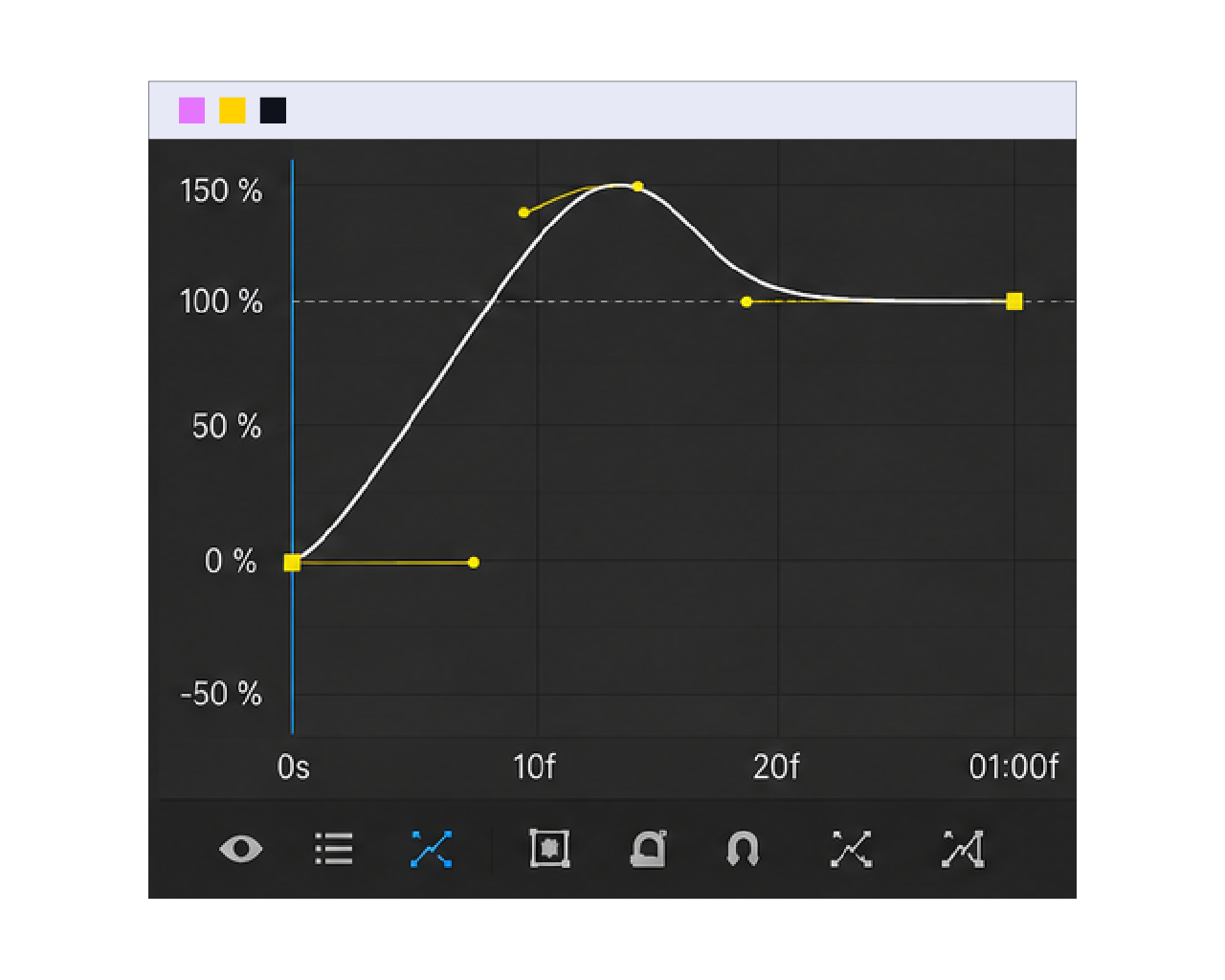
WHAT IT DOES:
Element goes past its target then settles back, adds energy and life.
HOW TO DO IT:
Pull the outgoing curve above the keyframe value, then ease it back down.
2-Anticipation
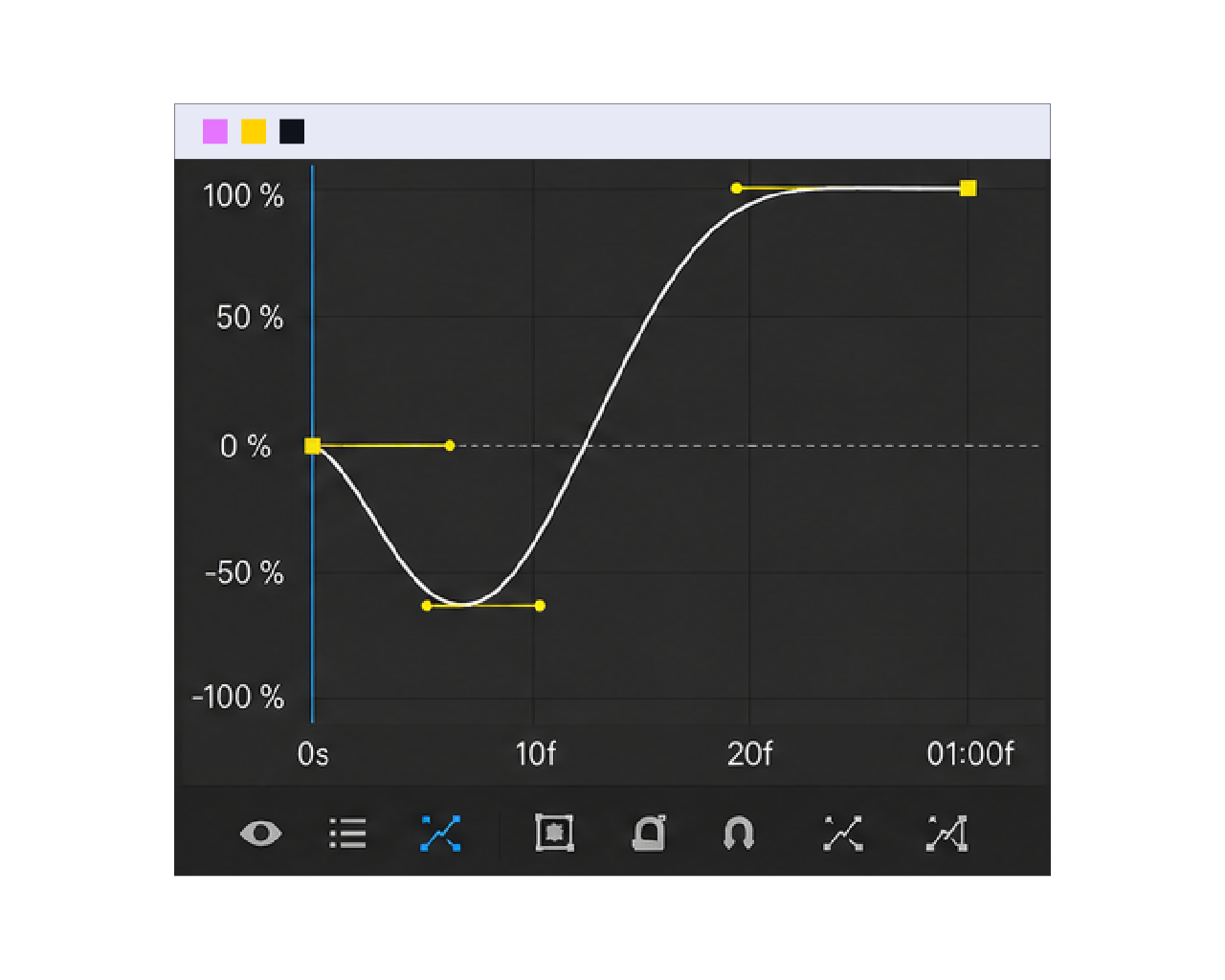
WHAT IT DOES:
A tiny pull backward before the main move, makes the motion feel intentional.
HOW TO DO IT:
Add a small keyframe opposite the direction of motion right before the main action.
3-Quick Ease In
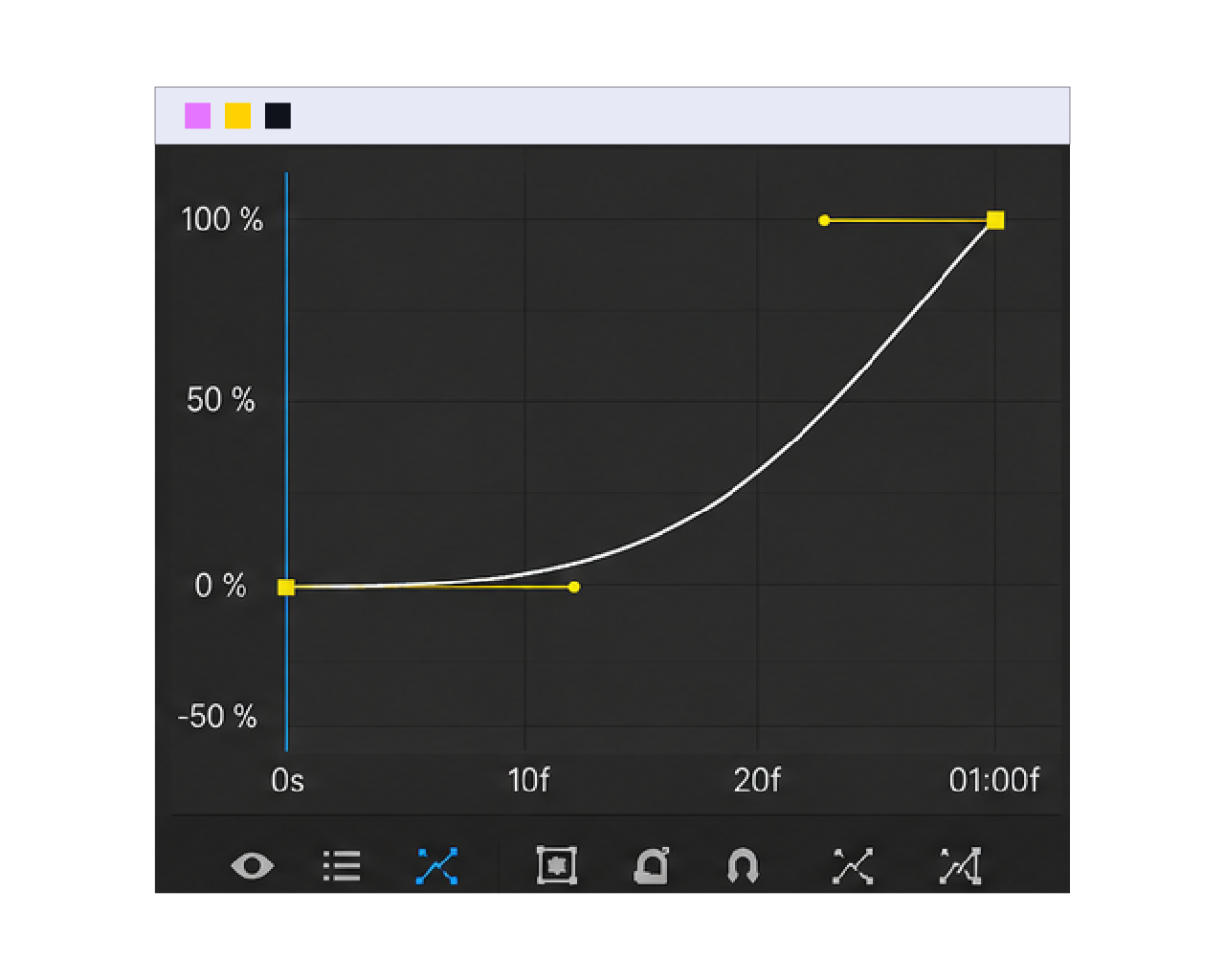
WHAT IT DOES:
Motion starts slow and gently, then picks up speed fast, feels natural leaving a resting position.
HOW TO DO IT:
Drag the incoming curve handle close to flat near the first keyframe.
4-Quick Ease Out
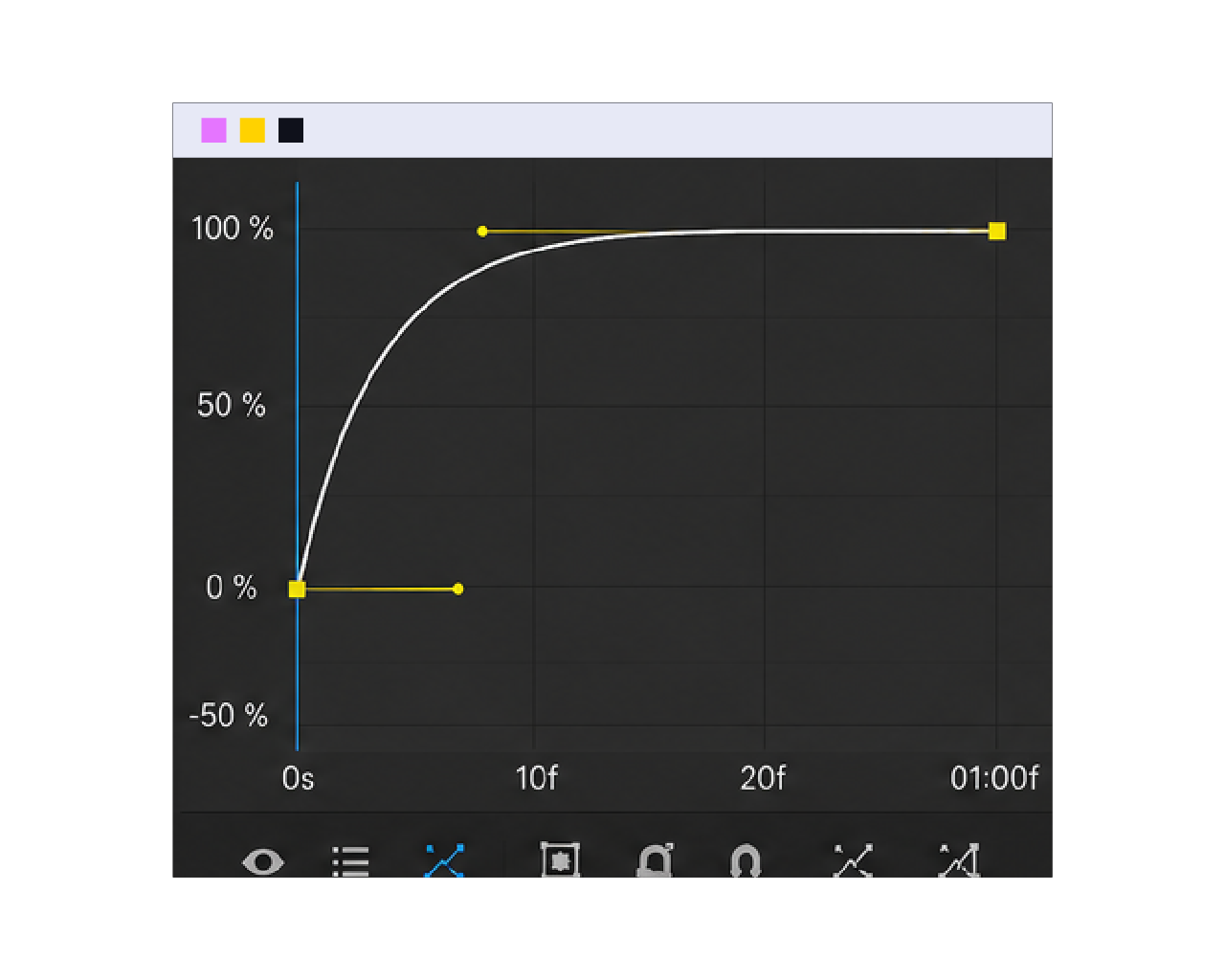
WHAT IT DOES:
Motion moves fast then settles in gently at the end, feels natural arriving at a resting position.
HOW TO DO IT:
Drag the outgoing curve handle close to flat near the last keyframe.
5-Extended Ease
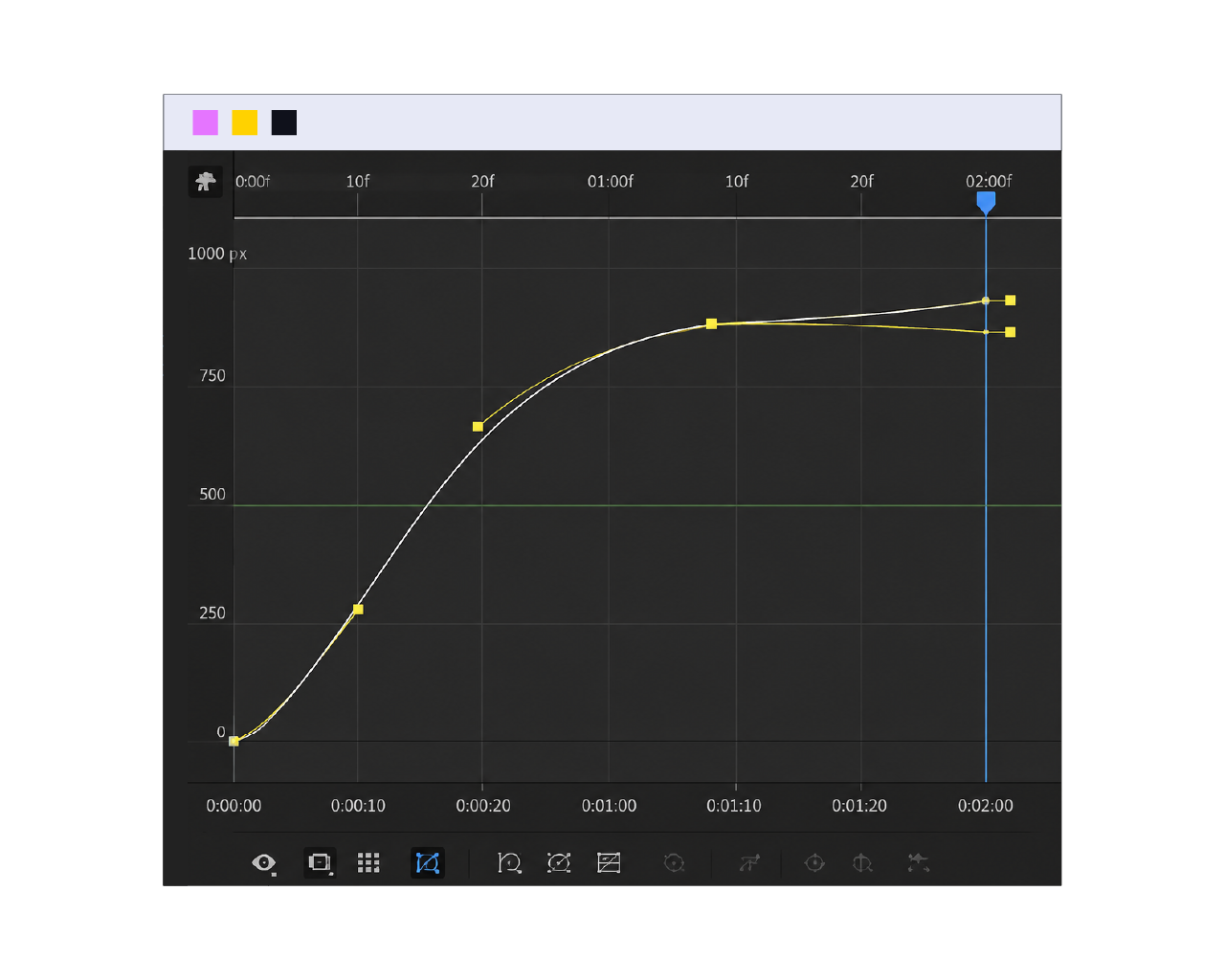
WHAT IT DOES:
Keeps your animation feeling alive after the main motion ends.
HOW TO DO IT:
Move the final keyframe forward, add a new one where it used to be.
Outro Graph Editor Guide
That's it. 5 curves, endless combinations.
You don't need to master all of them at once. Pick one, try it on your next animation, and see how much smoother it feels.
For more tricks like this, follow Scene Yard, and if you want ready-made scenes that already move like this, check out our library.