10 Effects For Every Ae User
10 must-know After Effects effects that instantly upgrade your edits. Covering light, motion, distortion, and depth in one complete reference.
Intro 10 Effects For Every Ae User
Every editor eventually builds a go-to list of effects they rely on
the ones that show up in almost every project because they just work. This is that list.
Ten effects that cover the essentials: light sweeps and reveals for transitions, distortions like Bulge and Wave Warp for movement and personality, atmospheric touches like Vignette and Tint for mood, and finishing tools like Drop Shadow for depth. None of these are obscure or hard to find they're built into After Effects and ready to use.
What matters is knowing when and how to reach for each one.
That's what this guide is for: a quick, practical breakdown of what each effect does, so you can start applying them with intention instead of guessing. Whether you're refining your workflow or just getting familiar with AE's toolset, this is a solid foundation to build on.
1- CC Light Sweep
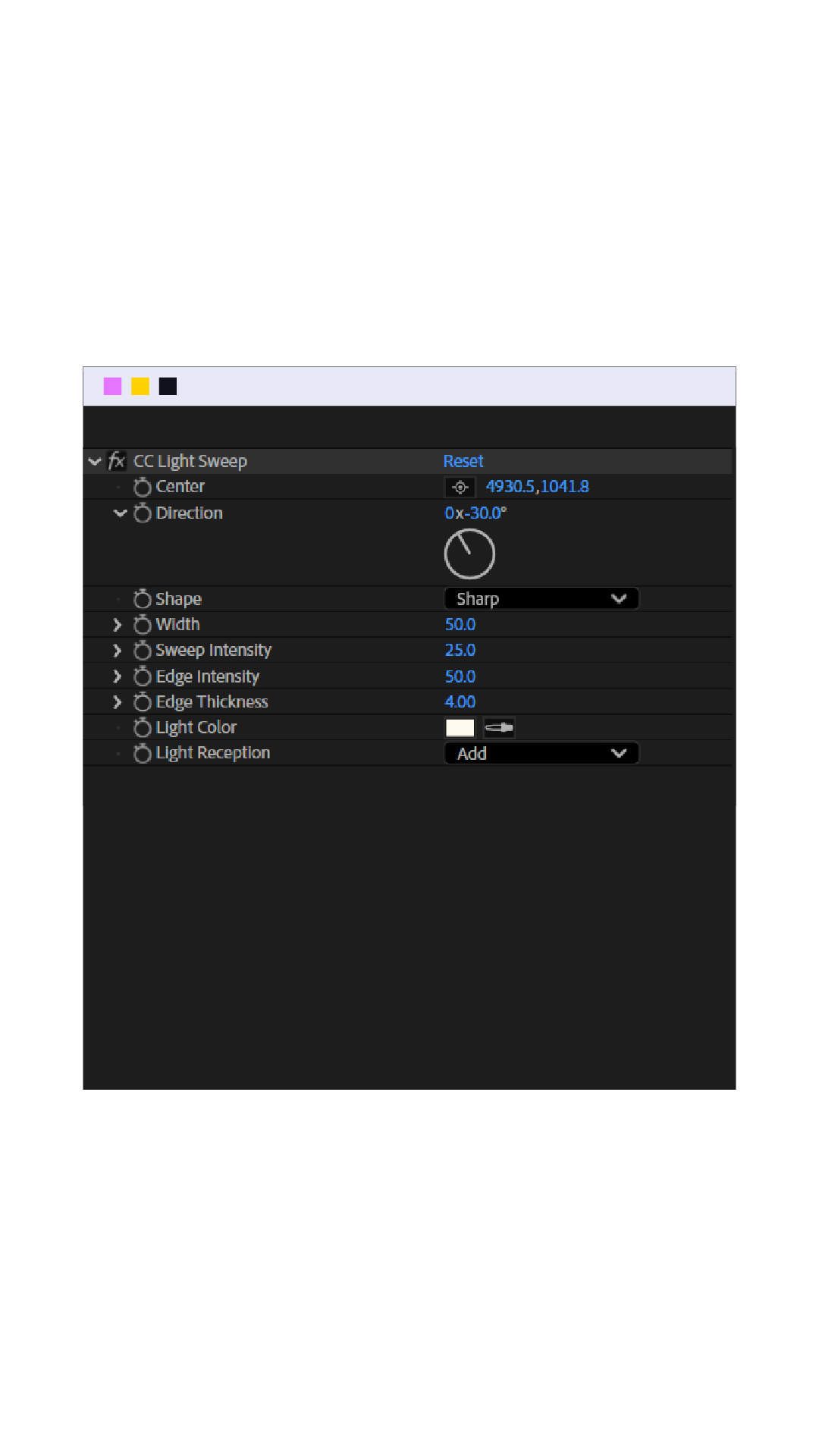
Creates a moving highlight that sweeps across your element in a set direction, like light reflecting off a glossy surface.
Key parameters:
• Direction : angle the sweep travels
• Shape : Linear or Sharp; Linear gives a smoother result
• Sweep Intensity : how strong/visible the highlight is
• Edge Intensity : adds a bright edge at the sweep's border for a more "metallic" feel
• Base Color / Highlight Color : recolor the sweep instead of default white
For best results:
Keyframe Center only (from off-element to off-element), leave the rest static. Apply Easy Ease so the motion doesn't feel mechanical.
For text or repeated elements, keep the sweep short (0.5–1s) for a quick-hit feel, not a slow crawl. If the sweep is eating detail underneath, lower Sweep Intensity slightly as the default is often too strong.
For a more premium look, push Edge Intensity up instead of increasing the sweep itself.
2- Bulge
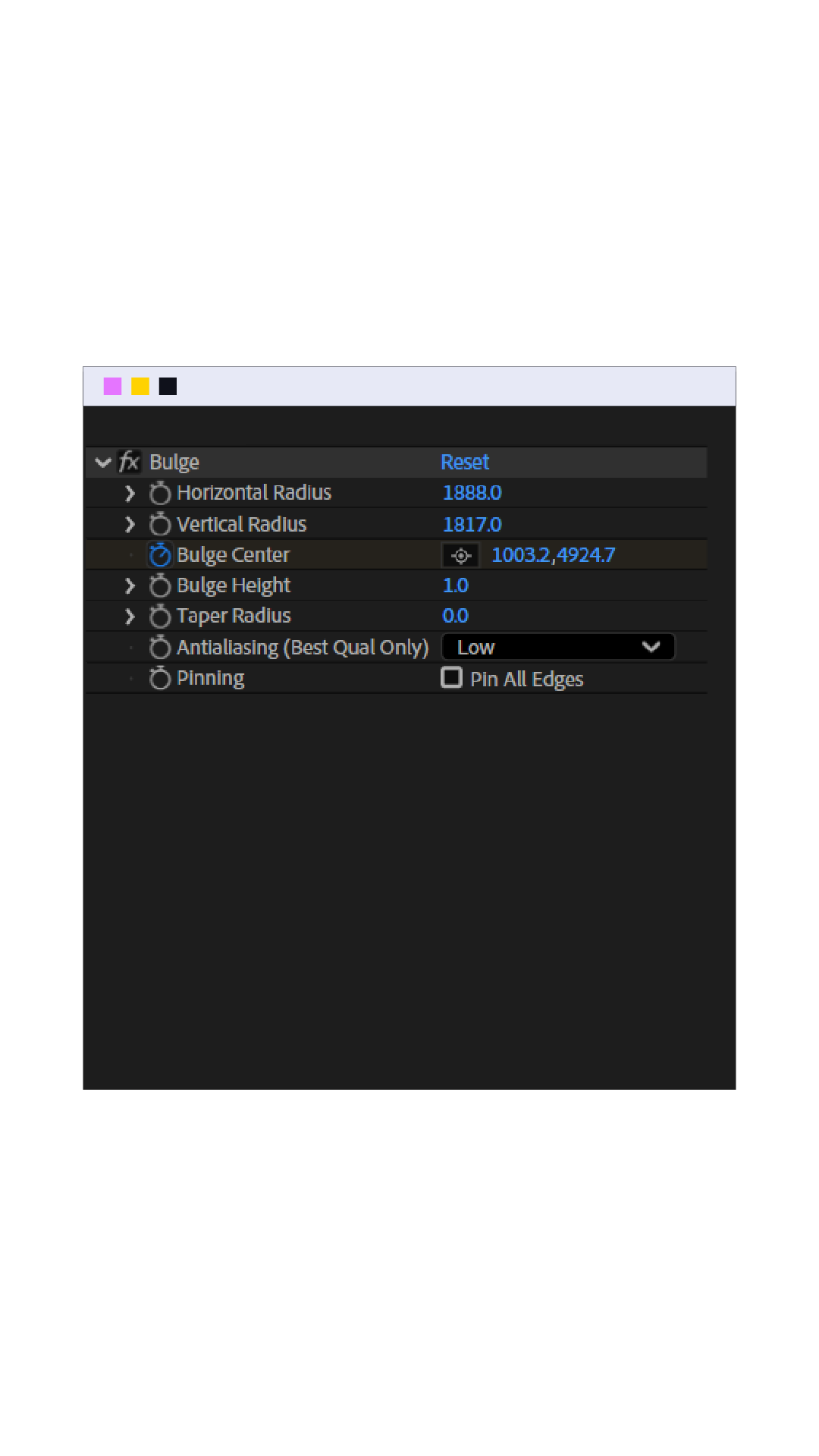
Distorts your element outward from a center point, like it's being viewed through a curved lens or magnifying glass.
Key parameters:
• Horizontal/Vertical Radius : size of the bulge area
• Bulge Center : where the distortion originates
• Bulge Height : intensity/direction of the effect (negative values pinch inward instead)
• Taper Radius : how sharply the distortion fades at the edges
• Pinning : locks the edges in place so only the center distorts (useful to keep element boundaries clean)
For best results:
Turn on Pinning if you don't want the edges of your layer warping too keeps the distortion contained.
Keyframe Bulge Height from 0 to your target value for a "pop" reveal, with Easy Ease on both ends.
Keep Bulge Center static unless you want a moving lens effect animating both center and height at once usually looks messy.
Small Taper Radius = sharper, more localized bulge (good for logos/icons). Larger = smoother, more subtle distortion (good for full-frame footage).
For a quick "impact" feel, animate the bulge in fast (5-8 frames) and let it settle .. avoid slow, even timing or it reads as a lens glitch instead of a stylistic hit.
3- Venetian Blinds
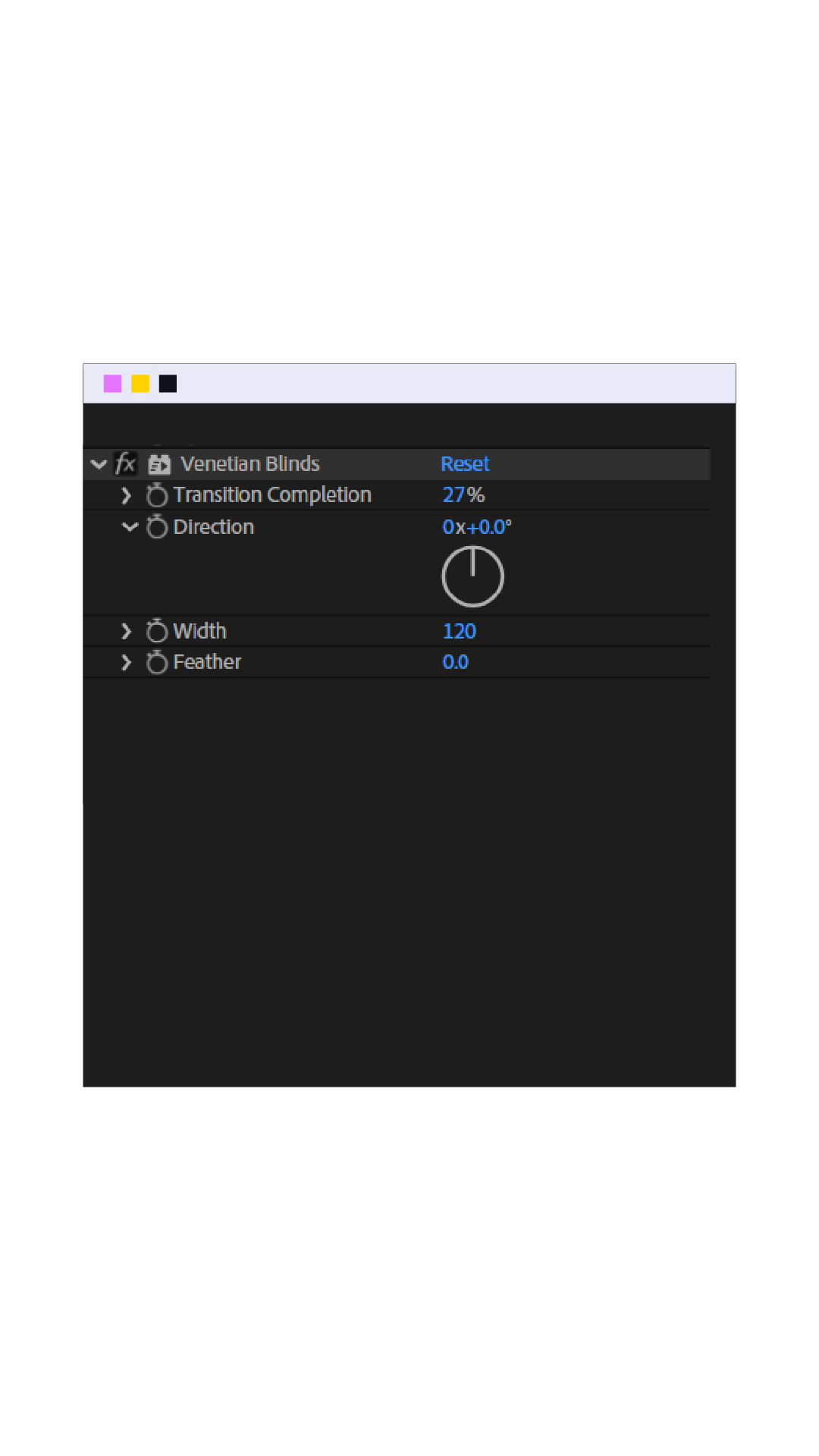
Reveals your element through a series of parallel stripes/lines that open up, like blinds lifting.
Key parameters:
• Transition Completion : controls how much of the reveal has happened (0–100%)
• Direction : angle of the stripes
• Width : thickness of each stripe
• Feather : softens the edges of each stripe for a less mechanical look
For best results:
Keyframe Transition Completion from 100% to 0% for a reveal (or reverse for a wipe-out).
Add a touch of Feather even 2-5px softens the hard digital edge and makes it feel more designed, less like a default preset.
Match Direction to your composition's layout (horizontal stripes for wide elements, vertical for tall ones) rather than leaving it at default.
Keep the reveal fast (10-15 frames) Venetian Blinds reads as a transition device, so a slow reveal feels like a mistake rather than a style choice.
Stack it under a Track Matte if you want the blinds to reveal an image/video instead of just a solid gives you a lot more creative range than applying it directly to footage.
4- CC Ball Action
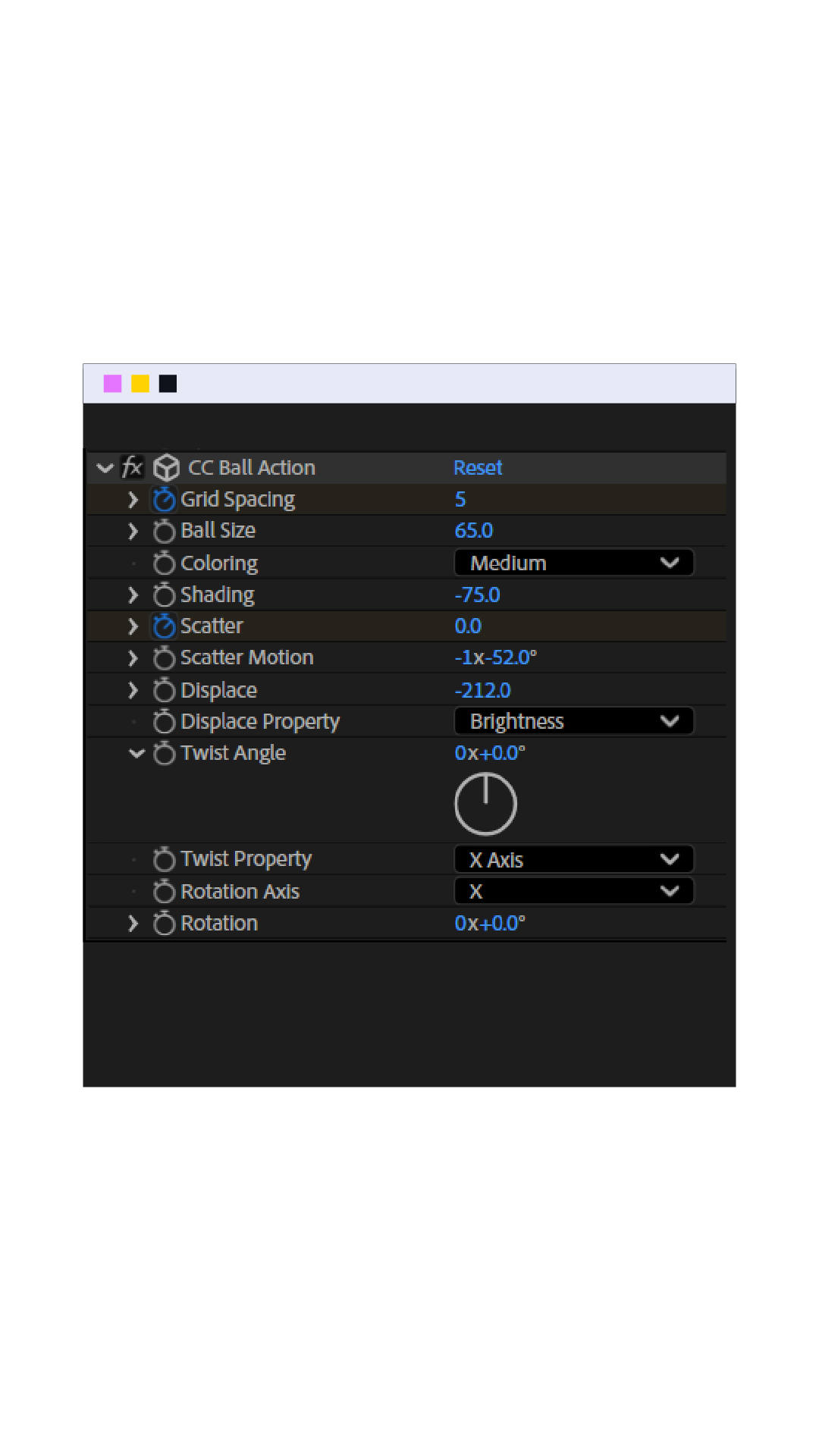
Breaks your element into a grid of spheres, which can be animated in or out to shatter/assemble the image.
Key parameters:
• Grid Spacing : size of the balls (smaller = more detail, larger = more abstract/blocky)
• Ball Size : how large each individual ball is relative to the grid
• Twist Properties : adds rotation to the balls as they transition
• Rotation : controls X/Y/Z rotation behavior
• Transition Completion : drives the assemble/disassemble animation
For best results:
Keyframe Transition Completion from 100 to 0 for an assemble-in, or 0 to 100 for a shatter-out.
Keep Grid Spacing small-to-medium if the source has fine detail (text, logos) too large and it becomes unreadable during the transition.
Add subtle Twist for a more dynamic, less rigid break-apart look, 0 twist reads very mechanical.
Use Ease on the Transition Completion keyframes; linear timing makes the balls scatter unevenly and look unpolished.
Works well as a scene transition pair the disassemble of one layer with the assemble of the next for a seamless swap.
5- CC Vignette
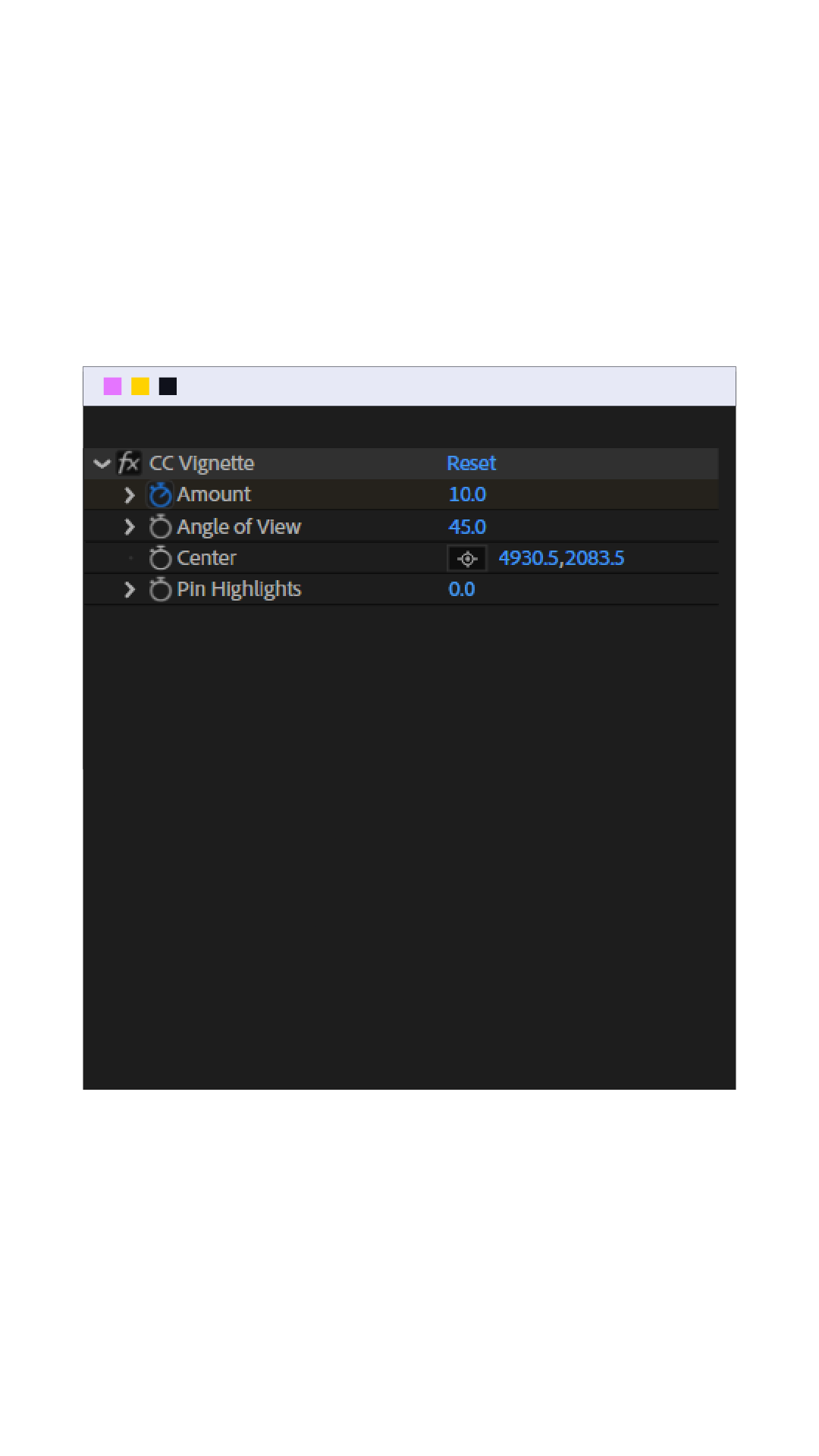
Darkens the edges of your frame, drawing focus toward the center, a classic cinematic finishing touch.
Key parameters:
• Center : where the bright "focus point" of the vignette sits
• Amount : intensity of the darkening
• Angle of View : controls the shape/spread of the vignette
• Lens Type : changes the falloff curve (affects how gradual vs. sharp the edge darkening is)
For best results:
Keep Amount subtle : 15-25 is usually enough for a cinematic feel without it looking like a heavy filter.
Set Center to match your subject/focal point, not always dead-center this guides the eye more naturally.
Apply it on an adjustment layer above your composition instead of directly on footage, so it's easy to tweak or remove without touching the source.
Use with a slight Amount increase toward the end of a clip (subtle keyframe) to add tension or draw focus right before a cut.
Combine with a light Gaussian Blur on the same adjustment layer (masked to edges only) for an even softer, more premium falloff than the vignette alone gives.
6- Gaussian Blur
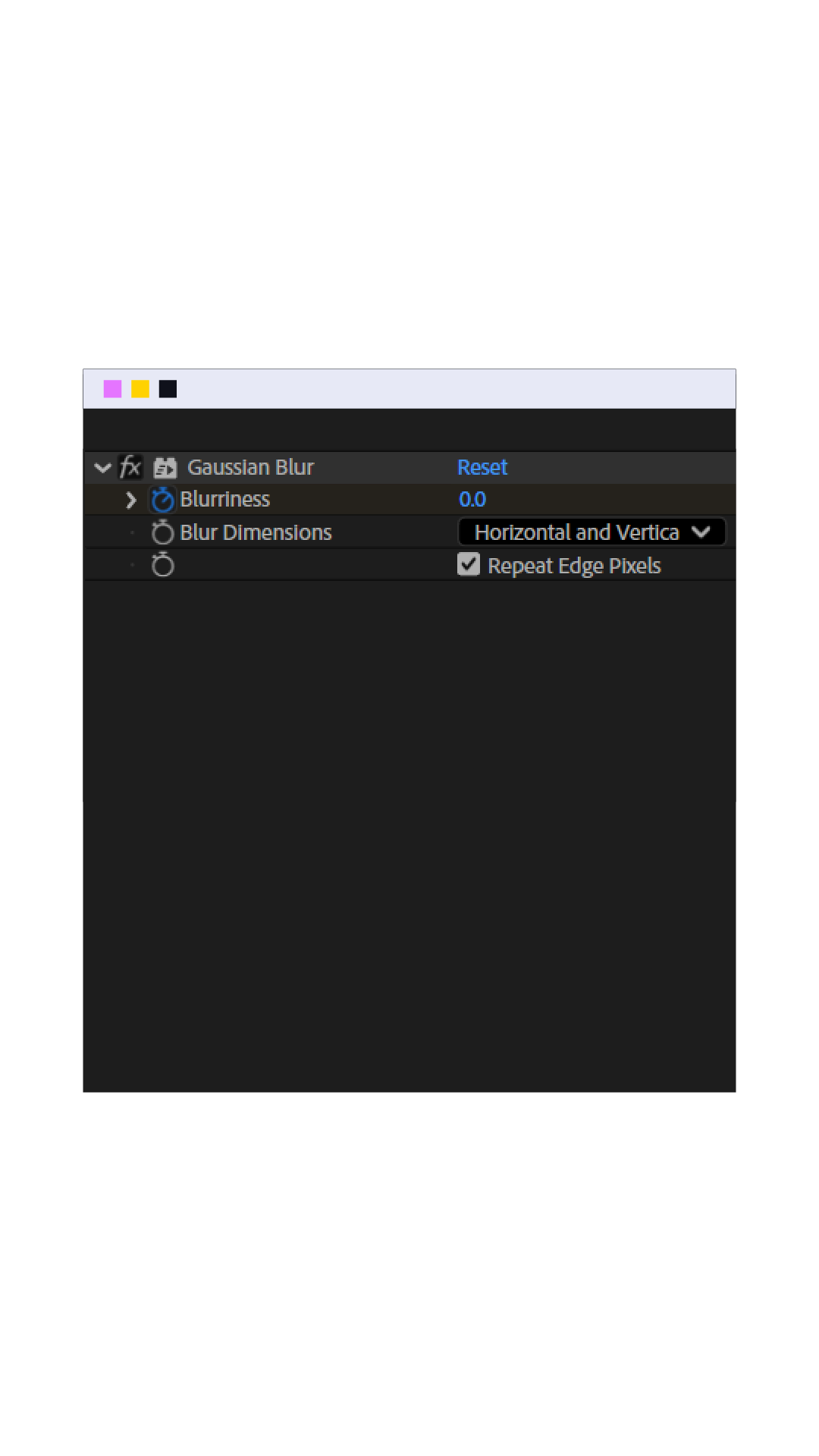
Softens your element evenly in all directions .. the standard blur used for focus effects, transitions, and smoothing.
Key parameters:
• Blurriness : strength of the blur
• Blur Dimensions : Horizontal and Vertical, Horizontal only, or Vertical only
• Repeat Edge Pixels : prevents transparent edges from fading out as the blur increases
For best results:
Turn on Repeat Edge Pixels whenever the layer fills the frame — without it, edges thin out and look broken at high blur values.
Use Horizontal only or Vertical only for directional motion blur looks (great paired with fast movement or transitions) instead of full blur.
For a whip/transition blur, keyframe Blurriness up fast (3-5 frames) then back down on the next scene, this sells a fast camera move or cut.
For a depth-of-field look, apply on a duplicate background layer only, masked or behind your subject so it don't blur the whole comp.
Pair with a slight Scale increase (2-5%) during high blur values this hides edge artifacts and softens the transition even further.
7- Wave Warp
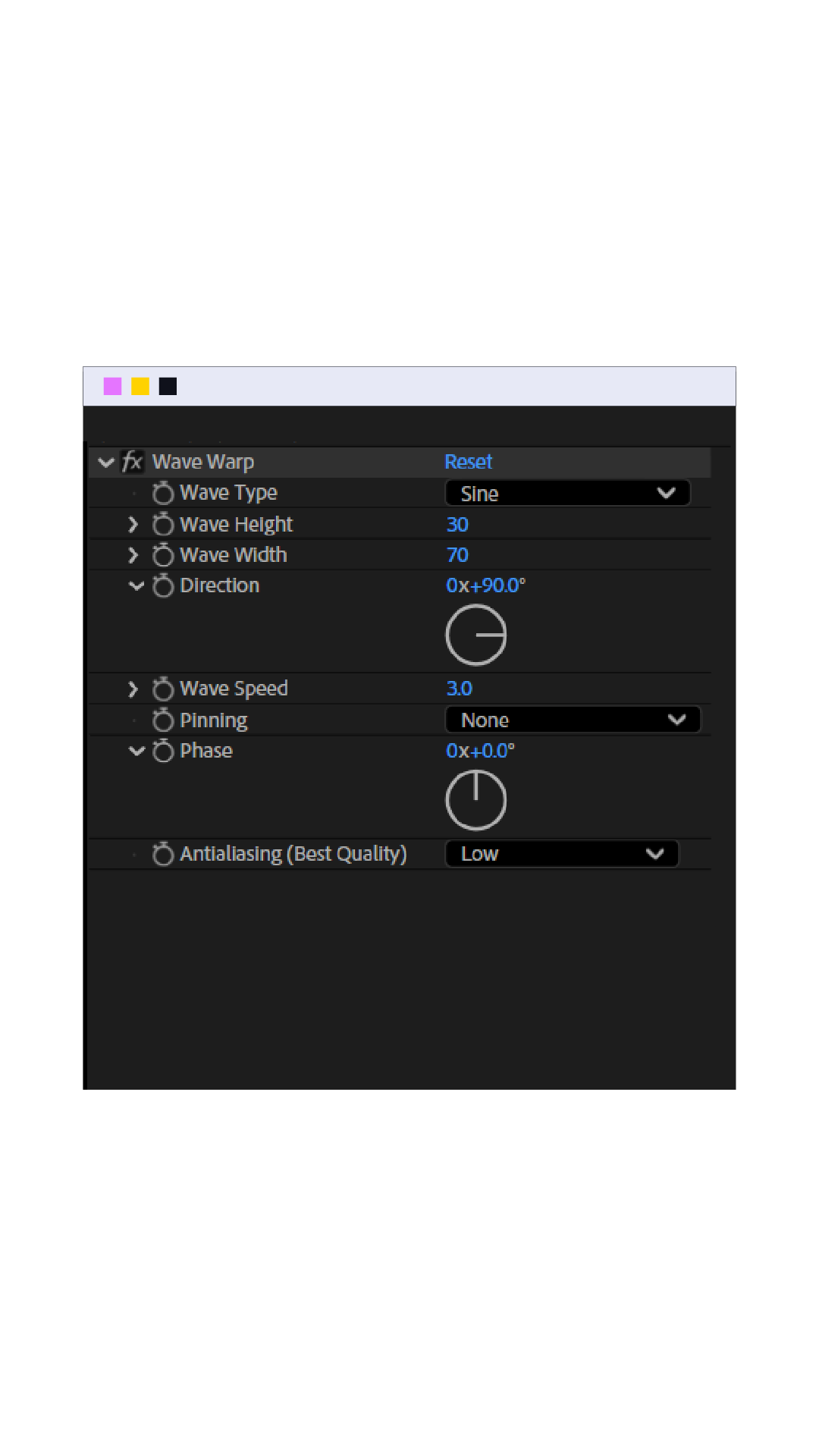
Applies an animated wave distortion across your element, shifting pixels in a repeating pattern over time.
Key parameters:
• Wave Type : shape of the wave (Sine, Square, Triangle, Sawtooth, etc.) — Sine is the smoothest, most natural-looking
• Wave Height : how far pixels shift from their original position
• Wave Width : distance between wave peaks (smaller = tighter ripples, larger = broader waves)
• Direction : angle the wave travels
• Speed : how fast the wave animates automatically (no keyframes needed)
For best results:
Use Sine for water/liquid looks, Square for glitchy/digital distortion .. pick based on the mood, not the default.
Keep Wave Height low (2-8) for a subtle "alive" texture on static elements; push higher only for an intentional distortion effect.
Speed already animates the effect you usually don't need to keyframe anything manually, just dial in the right pace for the mood.
For a controlled in/out (rather than a constant loop), keyframe Wave Height from 0 up and back to 0, keeping Speed constant throughout.
Precompose your element first if you're combining Wave Warp with other distortions .. stacking directly can cause unpredictable pixel shifting.
8- Turbulent Displace
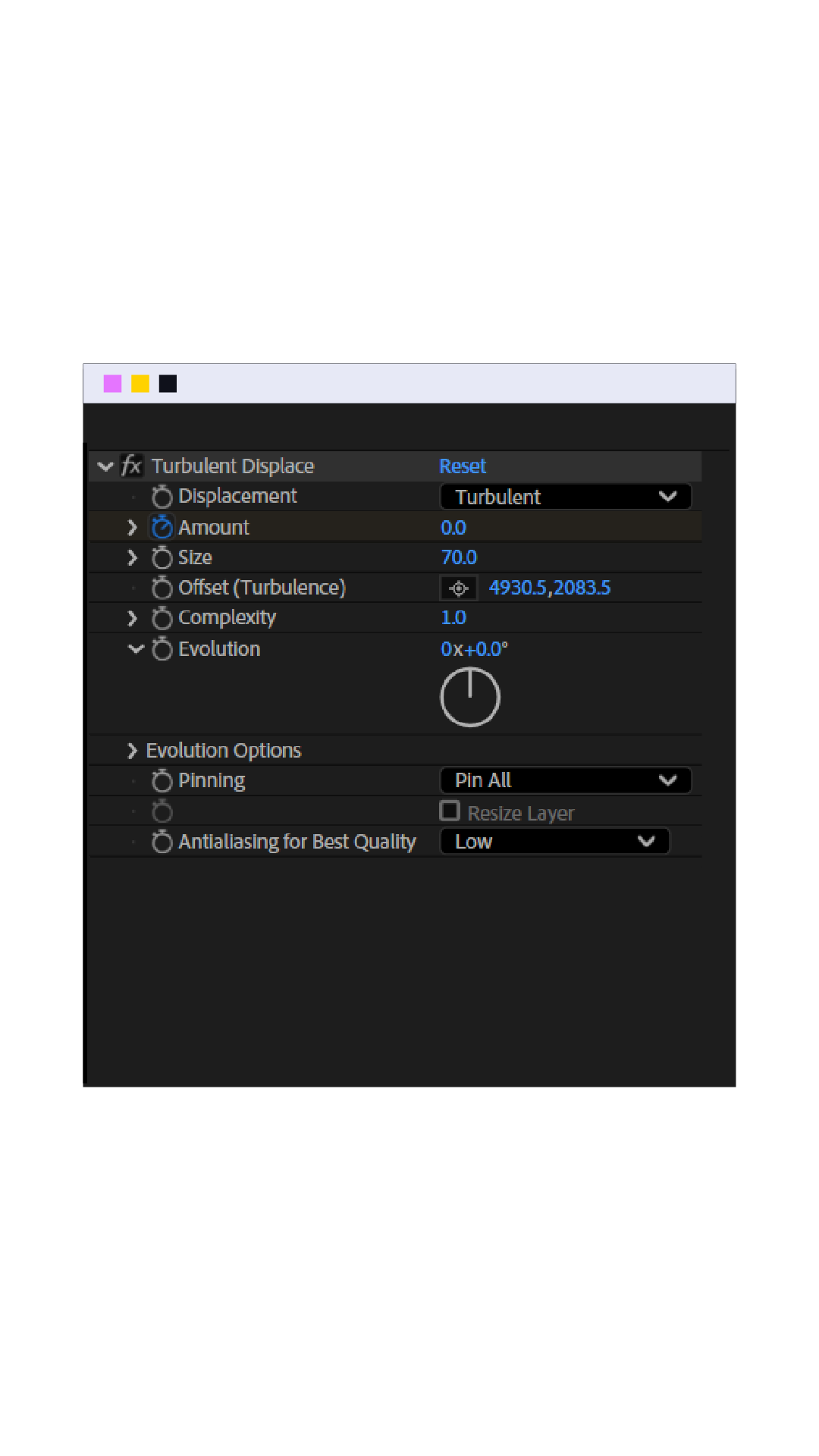
Distorts your element using organic, noise-based ripples similar to Wave Warp but more irregular and natural-looking rather than repeating.
Key parameters:
• Displacement : type of distortion pattern (Turbulent, Turbulent Smoother, Bulge, Twist, etc.)
• Amount : strength of the distortion
• Size : scale of the ripples (smaller = fine, detailed noise; larger = broad, sweeping distortion)
• Complexity : how many layers of noise are combined (higher = more detailed, less uniform pattern)
• Evolution : animates the noise pattern itself over time (this is what creates movement, separate from position)
• Pinning : locks edges so only the interior distorts
For best results:
Use Turbulent Smoother displacement type for calmer, more premium-looking ripples< the default "Turbulent" can look noisy/harsh.
Keyframe Evolution (not Amount) to animate the distortion over time this gives a natural, ever-shifting look instead of a static warp.
Turn on Pinning if the layer fills the frame, so edges stay clean and only the interior moves.
Keep Amount low (5-15) for a subtle "living" texture on backgrounds or overlays; go higher only for an obvious distortion effect.
Lower Size slightly compared to Wave Warp's Wave Width for the same footage, Turbulent Displace's irregularity means smaller values still read as smooth, while large values quickly become chaotic.
9- Tint
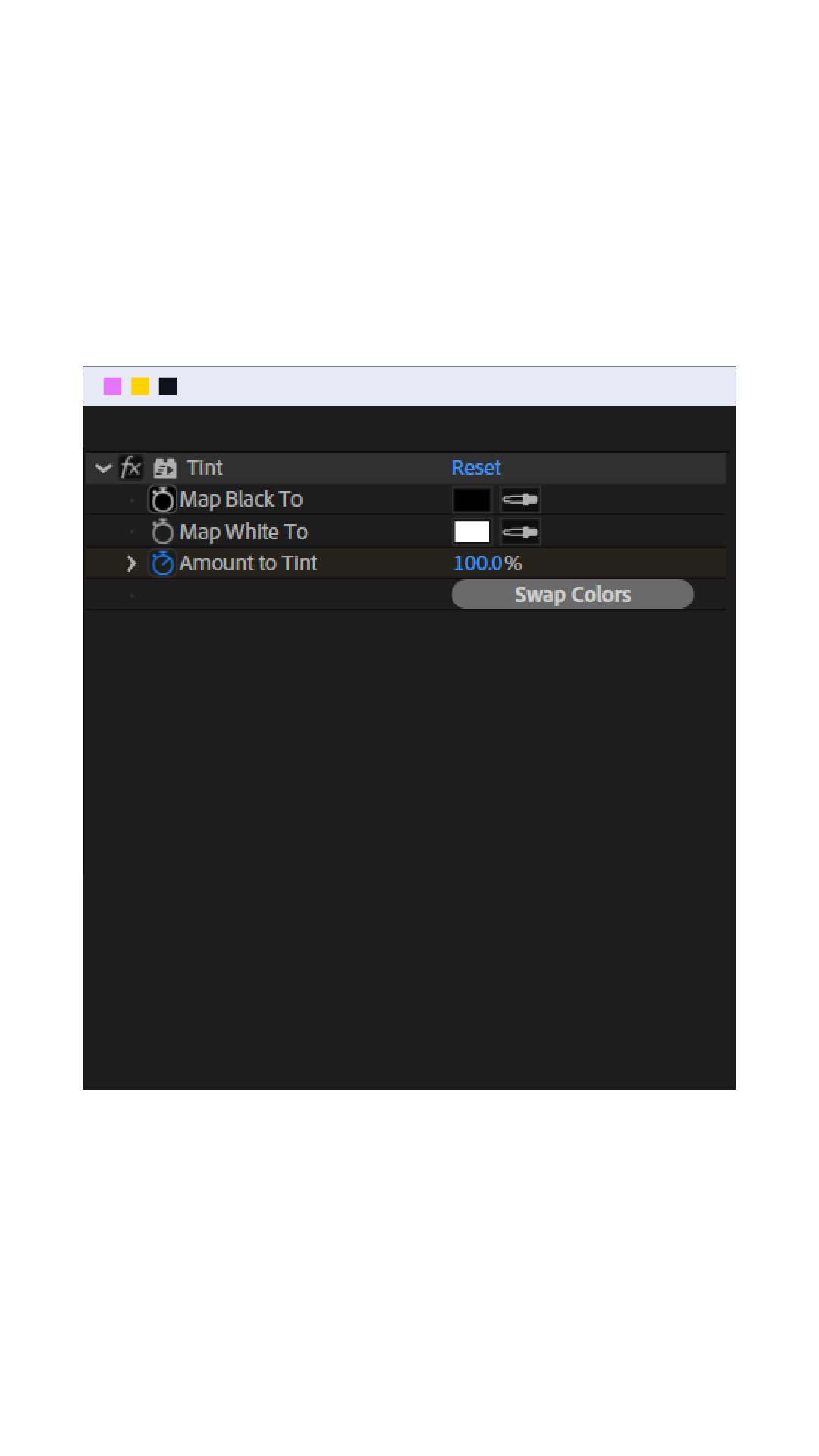
Remaps your footage's tones into a two-color gradient replacing dark areas with one color and light areas with another.
Key parameters:
• Map Black To : the color that replaces the darkest tones
• Map White To : the color that replaces the brightest tones
• Amount to Tint : blend strength between the original footage and the tinted result
For best results:
Avoid pure black-to-white, choose two colors close in hue but different in value (e.g., dark navy to soft cream) for a more cinematic, graded look instead of a flat duotone.
Keep Amount to Tint below 100 (around 70-85) if you want to retain some of the original color/contrast underneath, rather than a fully flat wash.
Use it on an adjustment layer so you can reuse the same tint across multiple clips for a consistent look.
Pair with a subtle Curves boost on contrast before applying Tint flat footage tints unevenly, so a bit of contrast first gives cleaner separation between the two mapped colors.
For brand-consistent content, set Map Black/White To using your exact brand colors, this effect is an easy way to tie unrelated footage into one visual identity.
10- Drop Shadow
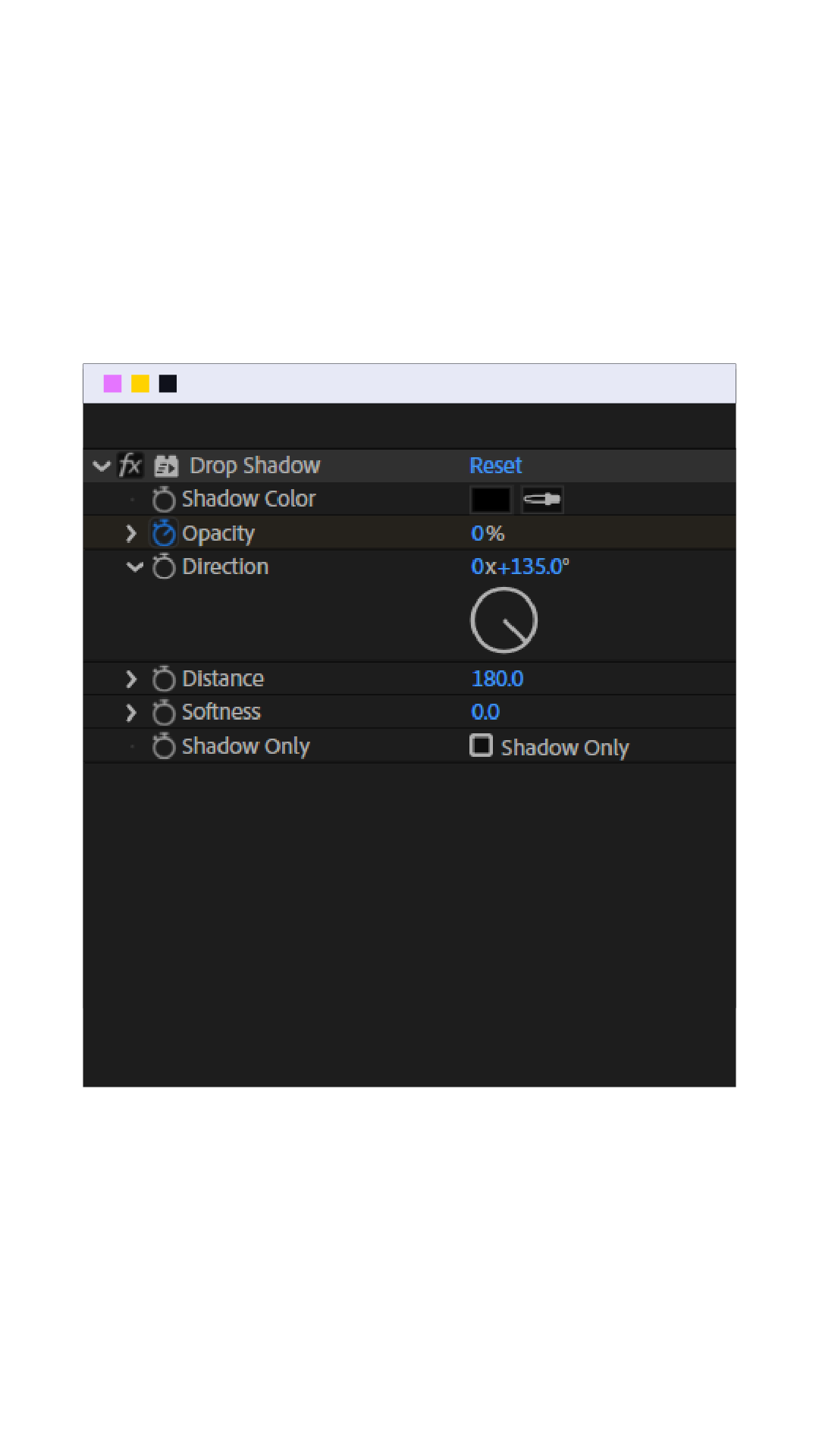
Adds a shadow behind your element, separating it from the background and giving a sense of depth or elevation.
Key parameters:
• Shadow Color : color of the shadow (rarely needs to be pure black)
• Opacity : how strong/visible the shadow is
• Direction : angle the shadow is cast
• Distance : how far the shadow sits from the element
• Softness : blur/feather on the shadow edges
For best results:
Keep Opacity moderate (40-60%) as fully opaque shadow looks pasted-on rather than natural.
Increase Softness as Distance increases shadows get softer the farther they fall from their source in real life, so match that relationship for realism.
Avoid pure black for Shadow Color a dark version of the background color (or a deep neutral gray) blends more naturally than flat black.
Keep Direction consistent across all elements in the same scene, mismatched shadow angles is one of the fastest ways to make a composite look fake.
For a subtle "lift" effect on UI/text elements, use small Distance (2-5px) with low Softness, this reads as a clean elevation rather than a dramatic shadow.
Outro 10 Effects For Every Ae User
That's 10 effects that cover most of what you'll reach for in everyday After Effects work .. from quick reveals like Light Sweep and Venetian Blinds, to texture and mood tools like Vignette and Tint, all the way to finishing touches like Drop Shadow.
Knowing what each one does is the first step; using them well comes with practice.
If you want scenes already built with effects like these applied and ready to customize, check out the our library.